
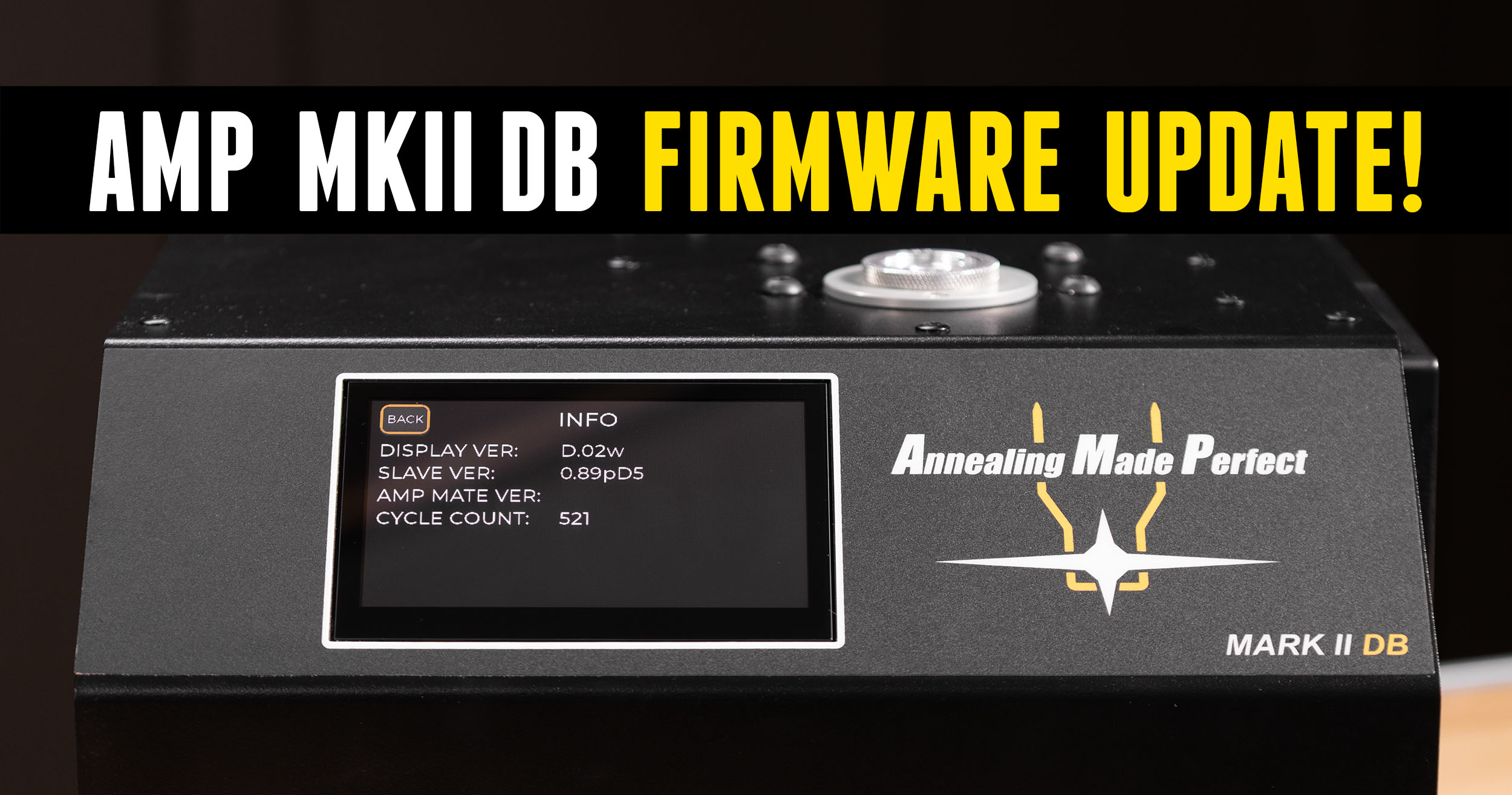
Annealing Made Perfect’s AMP Mark II DB introduced a database to easily store all of your brass data. Be sure to update your firmware to take advantage of new features! Read and watch on to learn more.
Disclaimer
Ultimate Reloader LLC / Making with Metal Disclaimer: (by reading this article and/or watching video content you accept these terms). The content on this website (including videos, articles, ammunition reloading data, technical articles, gunsmithing and other information) is for demonstration purposes only. Do not attempt any of the processes or procedures shown or described on this website. All gunsmithing procedures should be carried out by a qualified and licensed gunsmith at their own risk. Do not attempt to repair or modify any firearms based on information on this website. Ultimate Reloader, LLC and Making With Metal can not be held liable for property or personal damage due to viewers/readers of this website performing activities, procedures, techniques, or practices described in whole or part on this website. By accepting these terms, you agree that you alone are solely responsible for your own safety and property as it pertains to activities, procedures, techniques, or practices described in whole or part on this website.
How to Update Firmware
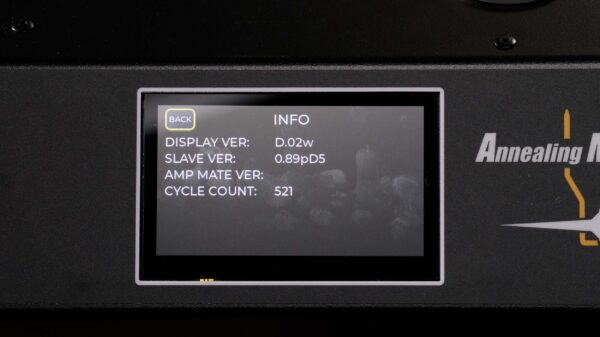
To determine what software version you are running, navigate to the “Info” screen of the AMP Mark II DB display.

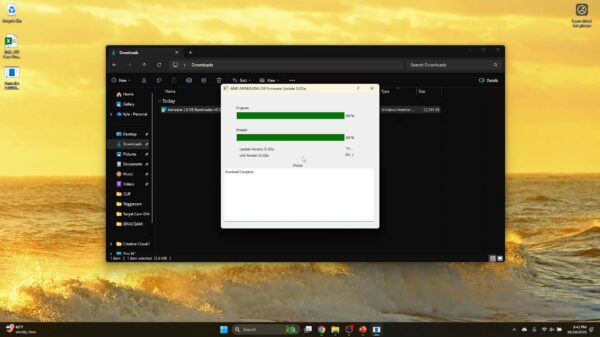
Go to AMPAnnealing.com/Downloads/ to see the latest version number.

From here, download the latest software for your operating system. This software is safe to run, though Windows may display a security message.

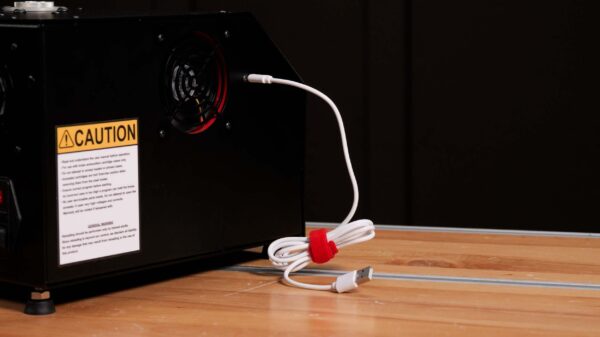
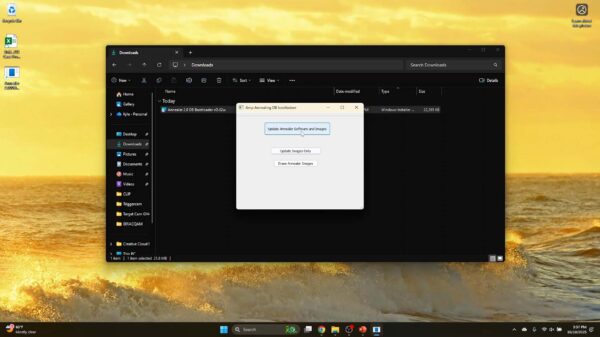
Next, connect the AMP Mark II DB to a desktop computer or laptop via USB cable and choose “Update Annealer Software and Images” on the pop-up.
After updating the firmware, restart the annealer and confirm the correct version is now showing on the “Info” screen.
Remember that you can use your annealer without updating it, but firmware updates provide new features and developments.
New Features
Software version D.02w of the AMP Annealing software introduces more ways to control and view your stored data.

To view your database, select “Aztec”, “Run”, and “Database.” Select your desired cartridge and choose “Load.” This will now open a menu that allows you to load the setting, edit the cartridge info, delete it from the system, or navigate back to the database.
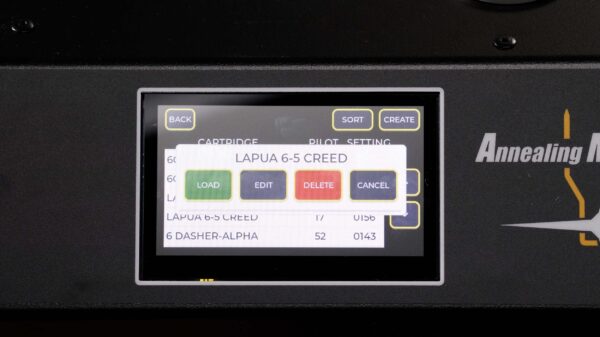
“Edit” allows you to change the name, pilot, or setting. Press “Back”to save.

Also new is a sorting feature! There are several ways to do this.
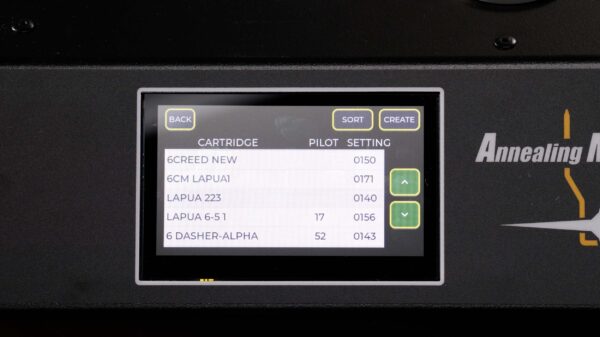
You can sort manually by holding down on a cartridge until the two arrows on the right side of the screen turn green.

Use the arrows to move that cartridge line further up or down the list.

If you want to sort all of the database information alphabetically, simply select the “Sort” button in the upper right of the display.

Conclusion
While these small changes may seem minor, I find them EXTREMELY useful. Being able to sort and edit my data gives me greater control and makes finding what I need faster and more efficient.
Get the Gear
Buy the AMP Mark II DB directly from Annealing Made Perfect or from Creedmoor Sports!
Don’t miss out on Ultimate Reloader updates, make sure you’re subscribed!
Thanks,
Kyle Shields
About the author